WhatsApp reminders that go out by themselves, from your number
Many no-shows are simply forgotten appointments. A reminder at the right time fixes that, but texting people one by one eats your time. Here is how to organise reminders and let them run on their own.
Create a free accountThe time manual reminders eat at the barbershop
End of the day, after the last haircut, you open tomorrow's schedule and start texting each client. Fifteen, twenty chats, one by one. The day you forget, somebody forgets too.
At a barbershop, clients who forget rarely call. They remember the haircut once the time has passed, and the chair sits empty. Reminders that depend on memory fail on exactly the busiest days.
When confirmations and reminders go out by themselves, you stop spending the end of the day on your phone and every client gets the message, even on a packed Saturday.
How to organise reminders (with or without software)
By hand or with a tool, what works is sending every time, in the same format and at the same moments.
Confirm right after booking
As soon as the appointment is made, send a message with the day, time and address. It avoids mix-ups and leaves a record in the chat.
Remind the day before
One day ahead, send a short reminder. It's when the client can still plan and, if something came up, warn you in time to offer the slot to someone else.
Remind again shortly before
A message shortly before the appointment catches anyone who got distracted that day. It's the reminder that prevents the most late arrivals.
Always use the same number
People recognise the number of the barbershop and reply to someone they know. Messages from unknown numbers often get ignored.
Keep messages short
Name, day, time, address and how to reschedule. Long messages don't get read to the end.
How it works in My Zeit
In My Zeit, you connect the WhatsApp you already use and the messages for every booking go out by themselves, from your number. There is no charge per message sent.
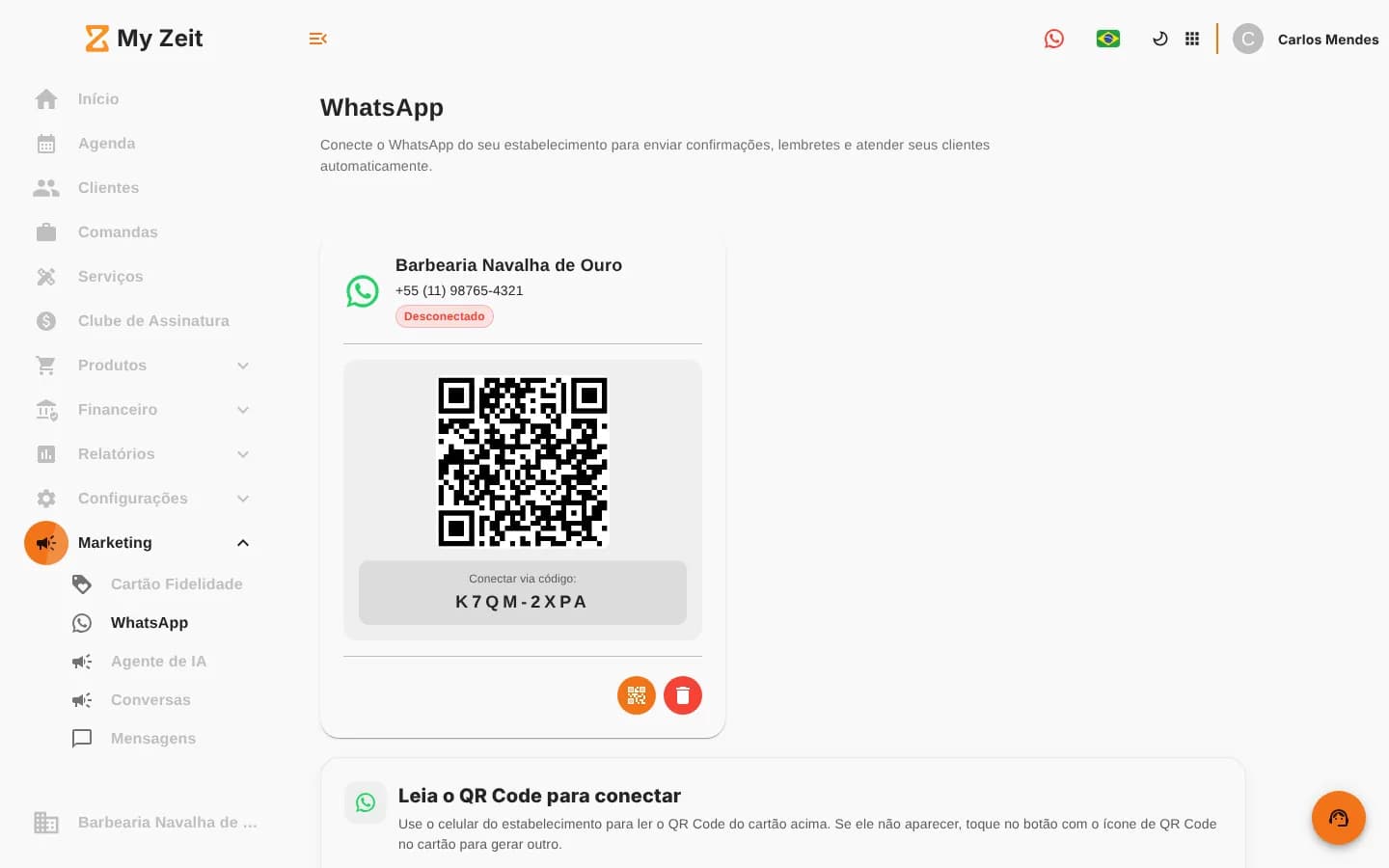
Connect your number with a QR code
In the dashboard, scan a QR code with your phone (or use a pairing code) and the number of the barbershop is connected. It's the same number your clients already know.
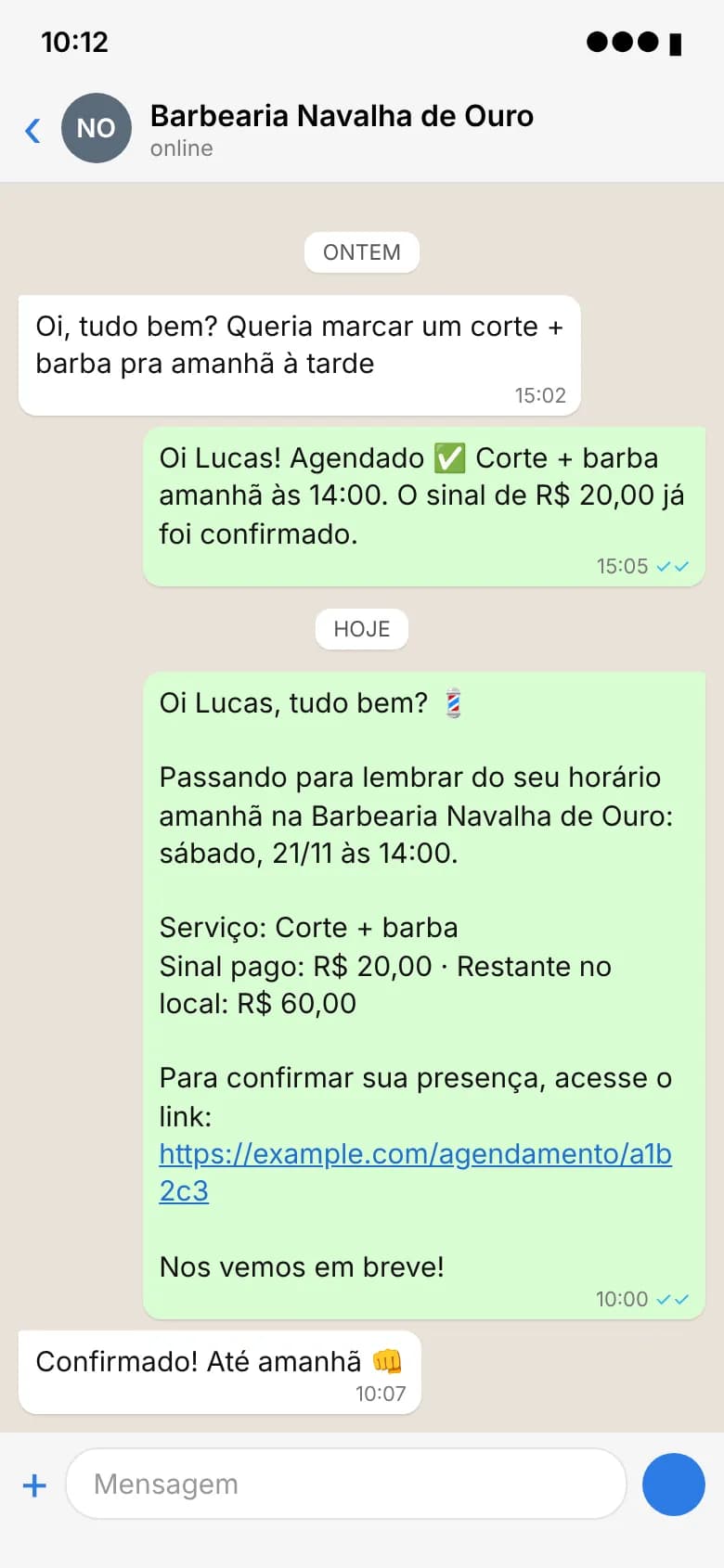
Messages go out by themselves
When a booking is made, the client gets a confirmation, then a reminder the day before and another about an hour before. Cancellations and reschedules are notified too, and the professional gets an alert for each new booking.
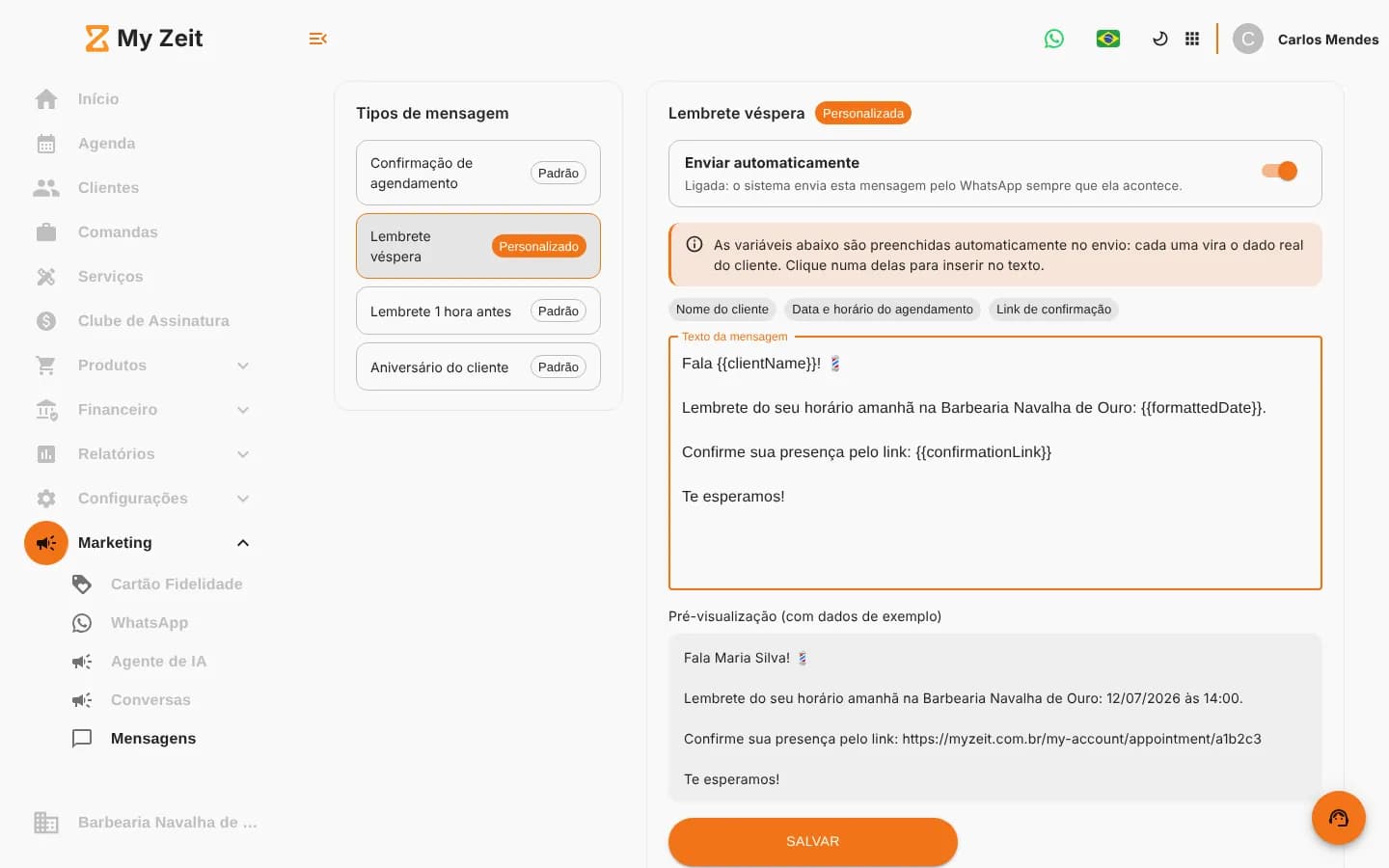
You adjust the wording
Message templates can be edited to sound like your barbershop, while the booking details are filled in automatically.
Frequently asked questions
Do barbers hear about new bookings too?
Yes. When a client books, the barber gets a WhatsApp alert with the new appointment.
Can I send birthday messages to clients?
Yes. Besides confirmations and reminders, a birthday message goes out by itself on the day.
Do I pay per message?
No. Messages go out from your own WhatsApp number and there is no charge per message sent.
Do I need a new number?
No. You connect the number you already use by scanning a QR code, just like using WhatsApp on a computer.
What if WhatsApp disconnects?
While the number is disconnected, messages don't go out. Reconnect from the dashboard by scanning the QR code again, and keep the phone online.
When do the reminders go out?
The confirmation goes out as soon as the booking is made. Then there is a reminder the day before and another about an hour before the appointment.
See also
Stop no-shows by taking a deposit at booking
Collect part of the price when the client books and stop losing appointments to people who never show up.
Stop booking appointments over WhatsApp one by one
Your own booking page where the client picks the service, the barber and a free time, 24 hours a day.
Answer WhatsApp straight away, even with your hands full
An AI on your WhatsApp that replies, shows free times and books appointments while you work.
Let reminders go out by themselves
Create your account, connect your WhatsApp and stop sending reminders one by one.
Create a free account